The Requirement status tile provides a comprehensive overview of all requirements in your contract management system, allowing you to monitor progress, track deadlines, and manage requirement assignments efficiently.
Note: Due dates and Review dates are shown in red if the delivery is overdue. However, if the requirement status is currently “Accepted,” it will no longer be highlighted in red even though delivery was overdue.
3.1.1 Requirement status tabs explained
All: Shows the total of all the requirements in the status tab.
Overdue: A requirement with a due date in the past and a status other than Accepted, Superseded, Archived, or Cancelled.
Open: A new requirement that has not yet been reviewed or acted upon.
Implemented: A requirement that has been successfully incorporated into the system or product.
Accepted: A requirement that has been reviewed, approved, and is ready to be implemented.
Ready for Review
Waiting: A requirement that is currently paused or delayed, awaiting a specific condition or event.
Disputed: A requirement that is under discussion or disagreement regarding its validity, feasibility, or priority.
Other inactive requirement statuses:
Cancelled: A requirement that has been deleted.
Archived
Superceded: A new parent requirement is created to replace the old requirement
3.1.2 Requirements tree structure
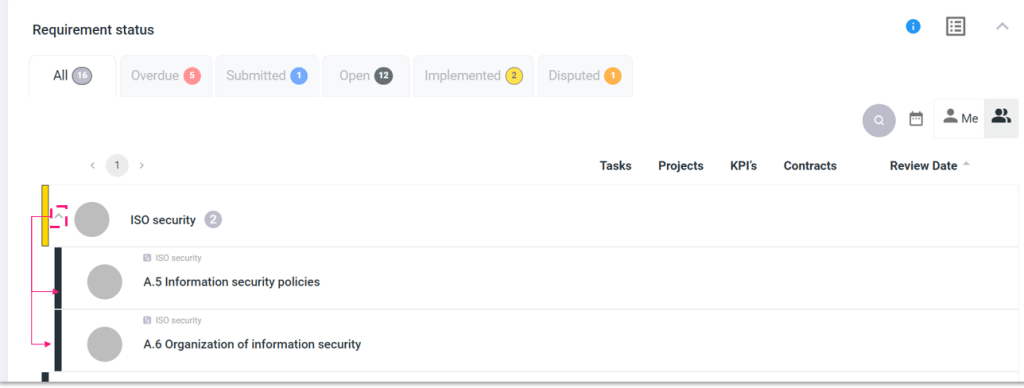
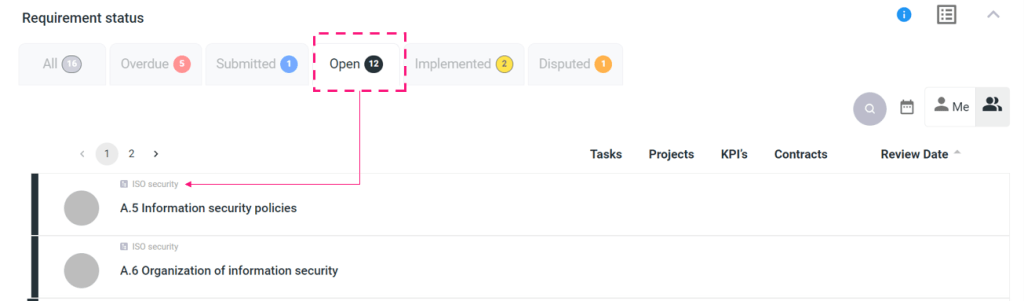
If a requirement has child requirements, they will be displayed under the parent requirement in the “All” tab. In other tabs, the child requirements will appear separately but will indicate the name of the parent requirement.
View details in Requirement pop-up If you click on the Requirement name a pop-up appears
3.2 Other features
3.2.1 “Me” and “All” filters
By default, the “me” filter is switched on, displaying only your Requirements. When the ‘All’ filter is selected, all Requirements are shown.
3.2.2 Applying Filters in the Requirement Module
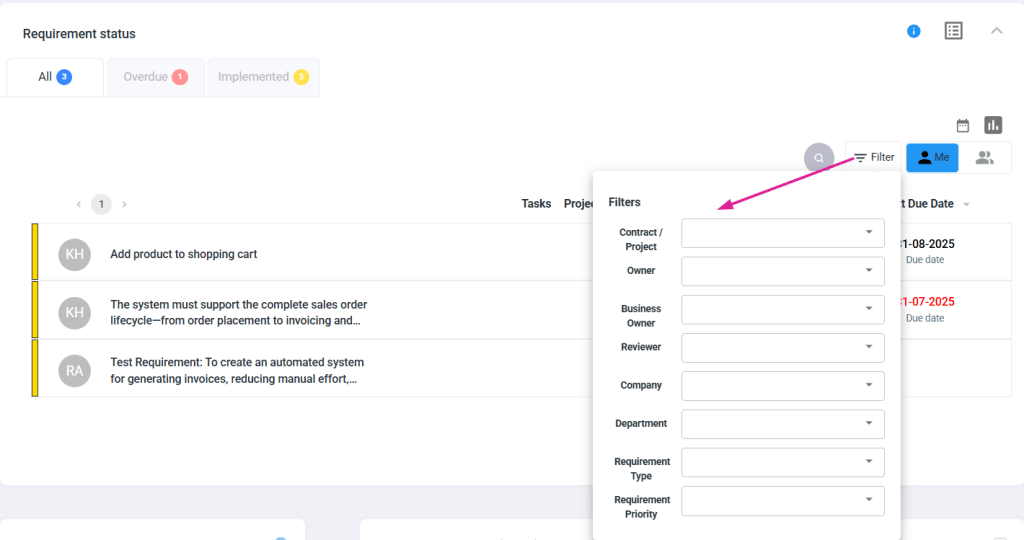
To help you narrow down and view only the relevant requirements, the Requirement Module provides a filter panel with multiple field options. By clicking on the Filter icon (as shown in the screenshot below), you can apply one or more filters based on the following attributes:
These filters help refine the data presented in both the requirement list and associated charts, making it easier to focus on specific subsets of requirements.
3.2.3 Order by due date / review date
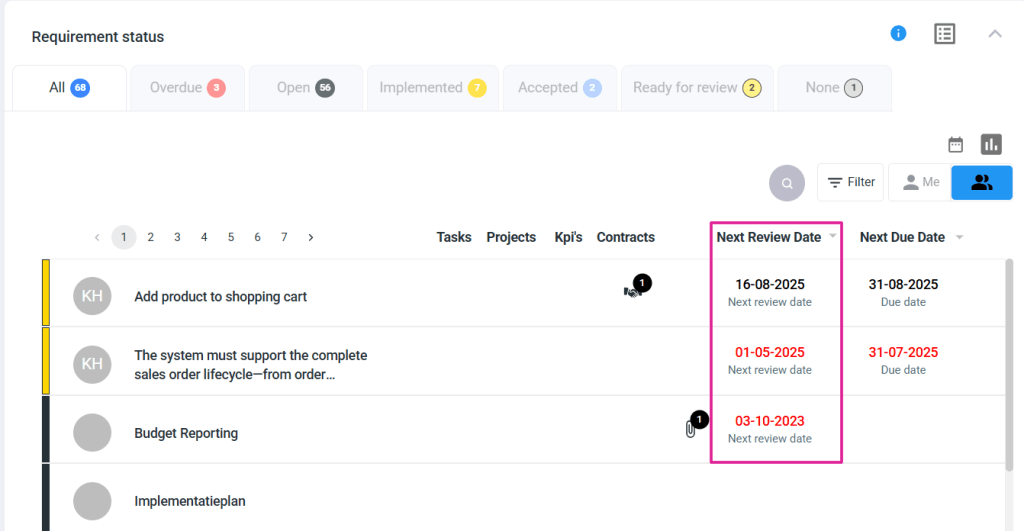
The tile also displays the requirements for the next review date. By default, these requirements are listed in ascending order. If you prefer to view them in descending order, simply click the icon next to the next review date, and the list will reorder according to your preference.
The next review date is displayed as follows:
If a requirement has a frequency and a review start date, the next review date will be shown.
If the due date is in the past, we will highlight the date in red so it is more visible for you to know that you need to take action.
3.2.4 Chart Visualization in the Requirement Tile
In the Requirement tile, requirement data is visualized using charts based on their status and any applied filters. Two types of charts are available:
Pie Chart
Bar Chart
3.2.5 Filter: Date range
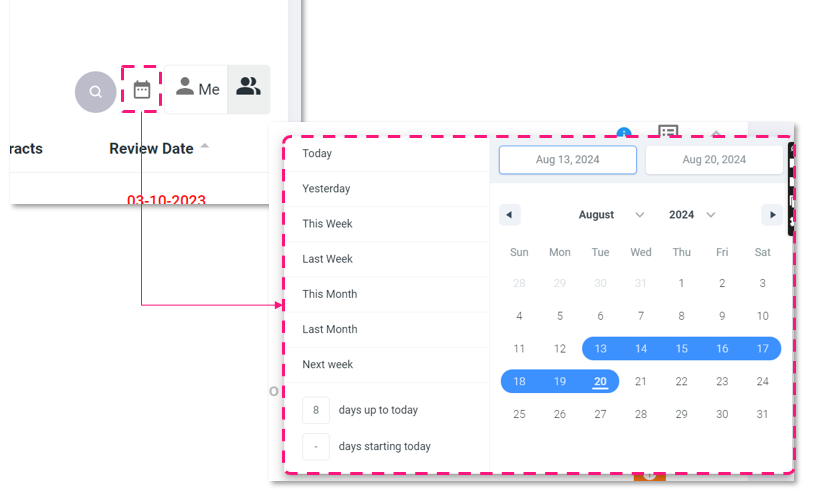
You can filter by a specific date range by selecting one of the suggested options on the left or by manually choosing a start and end date. Once the range is selected, all requirements with a due date or a next review date within that range will be displayed.
3.2.6 Search
Next to the other filters, you’ll find the search icon (loop icon). Clicking on it will open a search field, allowing you to search for a requirement by name from the list.