There are two ways to update a requirement status:
via the dashboard (4.1)
via automatic email updates
Both options lead to the same Requirement Update form.
4.1 Updating Requirement status via the Dashboard - Add Status Update
To update the status of a requirement from the Requirement Status tile:
Navigate to the Requirement Status tile on your dashboard.
Select Add Status Update from the menu.
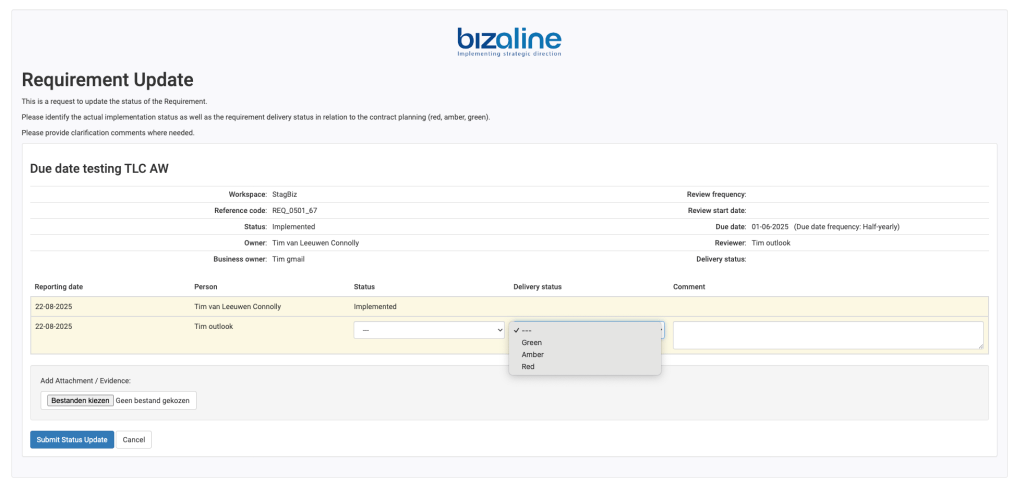
You will be directed to the Requirement Update page. If you fill the Requirement Status via e-mail you will be directed to this page as well.
Enter your update details and Submit Status Update save the update (Blue button):
Change your Status – you can only select the status depending on your role and the previous status
Add you Delivery status – “how is going?” select Green, Amber or Red
Add a Comment
Add a document or link as evidence of delivery
Note: A status update can only be added if you are assigned as Owner, Business Owner, or Reviewer of the requirement. Otherwise, the Status Update page will not open.
4.2 Edit your requirement (via Dashboard)
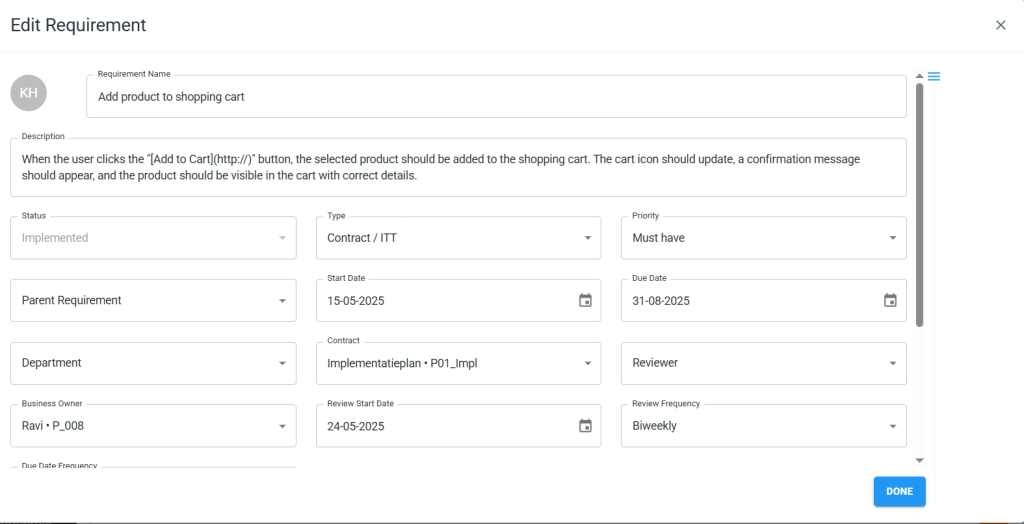
You can view more details about the requirement and if you are an Admin you can also edit a requirement directly from the Dashboard via ‘Edit Requirement’.
Go to the Requirement Status tile on your dashboard.
Click on the three-dot menu (⋮) on the requirement you want to edit.
Select ‘Edit Requirement’ from the dropdown menu.
From this screen (provided you have the right permissions) you can update the following fields shown below. The hamburger menu in the top right provides access to the fields you can update. This streamlined process allows you to quickly make basic updates without leaving the dashboard.
4.3 Requirement notification via e-mail
This chapter lists all e-mails users will receive depending on the selected notification. The sequence described is for a 3-stage approval process.
Step 1. Owner receives e-mail
The Requirement Owner will receive an email on the review/due date. The Owner can update status to Waiting or Implemented.
Step 2. Reviewer receives e-mail (after owner has set to Implemented).
The Reviewer can update status to Disputed or Ready for review
Step 3. When the Reviewer changes the status to Ready for review, the Business Owner receives an email. The Business Owner can then update the status to Disputed or Accepted.